

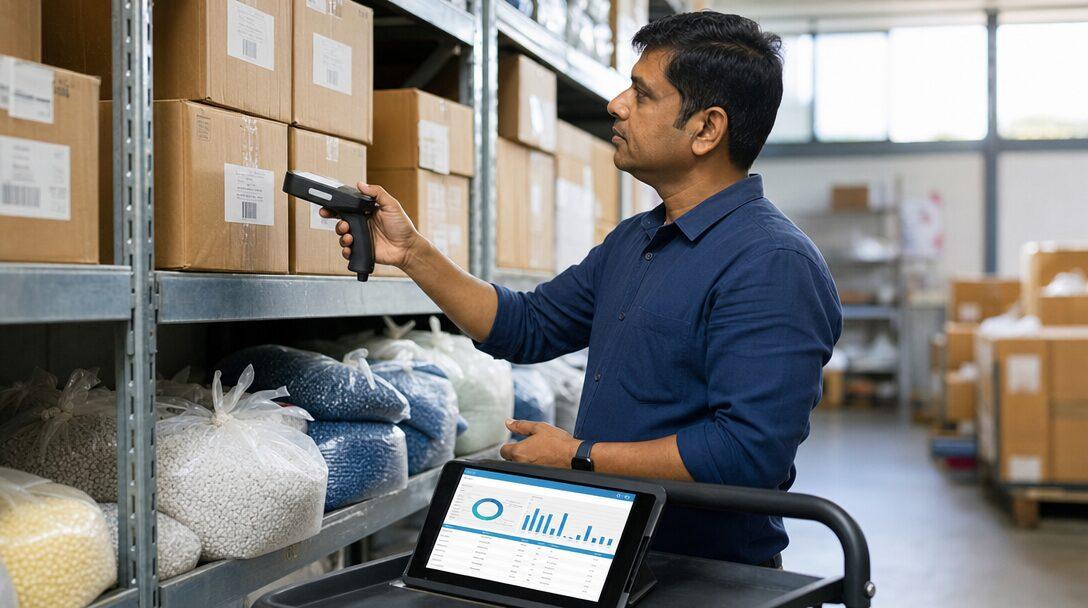
Picture a stores in-charge at a 30-person plant who is asked, at 4 pm, how much of batch 2311 is left and where it is. The answer exists, split across a godown register, a QC notebook and the accounts system, which shows a value but not a location. ERPNext inventory puts quantity, location, batch, quality status and value on the same record, posted when the goods move rather than at month end. This guide walks through the stock features an Indian plant uses, from warehouse design to stock reconciliation, with links to Frappe's documentation for each.
TL;DR
- ERPNext stock is organised as a warehouse tree, with each warehouse linked to an account, so every stock movement also posts to the ledger (perpetual inventory is on by default).
- Batch and serial numbers are per item. Since version 15 they are recorded in a Serial and Batch Bundle, and batch or serial items cannot go negative.
- Valuation is FIFO by default, with Moving Average and LIFO available, set per item and fixed once the item is saved.
- Reorder levels raise Material Requests automatically; putaway rules split receipts across bins by capacity and priority; landed cost vouchers add freight and similar charges to valuation.
- Quality inspection can block a receipt until it passes, and barcodes speed up receipts, deliveries and stock counts.
Free ERPNext fit check
Will ERPNext fit your factory?
Answer a few quick questions. On a short call we tell you whether ERPNext fits how you make, stock and sell, and what the rollout looks like.
Check my fit →How ERPNext stock is structured
Three building blocks carry everything else: the item, the warehouse and the stock transaction.
An item with "Maintain Stock" ticked is tracked by quantity. It carries its unit of measure and conversion factors (Frappe's example: 500 Nos of screws to 1 kilogram), barcodes, reorder levels and flags for batch, serial and inspection.
A warehouse is any storage location, and warehouses nest. The docs give "Warehouse > Room > Row > Shelf > Bin" as an example; tick "Is Group" on a warehouse and you can create children under it. Warehouse Types classify them for reports.
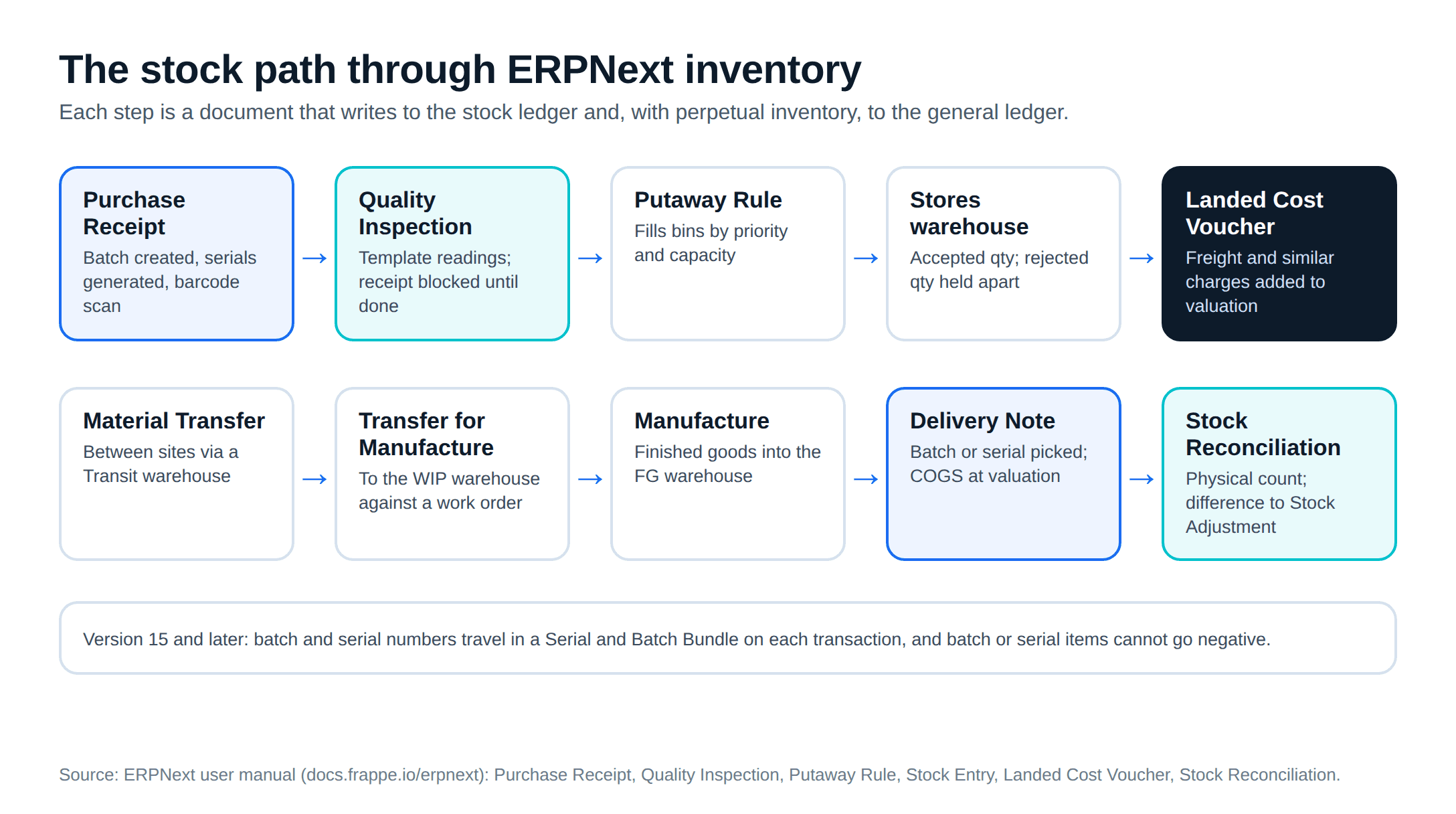
Every movement is a document: a Purchase Receipt, Delivery Note, Stock Entry or Stock Reconciliation. Each writes a line to the Stock Ledger, which shows the incoming rate, the valuation rate and the running balance value, with a link back to the source document.
Stock and accounts are tied together. Per the perpetual inventory page, it is enabled by default on a new site. A purchase receipt debits the warehouse's stock account and credits Stock Received But Not Billed; the purchase invoice later clears that account; a delivery note credits the warehouse account and debits Cost of Goods Sold at valuation. Stores and accounts read the same entries, so there is no separate month-end stock posting to reconcile.
Multiple warehouses and transfers
For a plant, a workable tree has one group per site with stores, work in progress, finished goods and a rejected warehouse under it. In an ERPNext implementation we settle this tree before the item import, since every stock document references it. The warehouse page advises linking sub-locations such as rows and shelves to their parent's account, because value per shelf is rarely needed.
Stock Entry purposes cover the internal moves: Material Issue, Material Receipt, Material Transfer, Material Transfer for Manufacture, Manufacture, Repack and Send to Subcontractor. Between two sites, a Material Transfer with "Add to Transit" sends stock into a warehouse of type Transit. The receiving site then clicks "End Transit" or pulls the transit entry into a new one. Until then, the goods on the truck show as stock in transit rather than vanishing from one site and appearing at the other.
How these moves connect to work orders and BOMs is covered in production planning, BOM and MRP in ERPNext.
Batch and serial numbers
Both are switched on per item.
For batches, tick "Has Batch No" and every stock transaction for that item needs a batch (batch docs). With "Automatically Create New Batch" ticked, the purchase receipt creates the batch. A batch can carry an expiry date and shows "Expired" after it. The Move and Split buttons transfer a batch between warehouses or divide it into a new one, and batch selection filters by warehouse, quantity and expiry against the posting date.
For serial numbers, tick "Has Serial No" and set a series, and receipts create serial numbers automatically (serial no docs). Each serial number records its warehouse, supplier, customer and warranty or AMC expiry, and only serial numbers with status "Available" can be delivered.
Version 15 changed how both are stored. The Serial and Batch Bundle replaced the old free-text serial field with a linked record per transaction. For outward entries, the selector picks numbers by FIFO, LIFO or expiry, and a CSV import fills large bundles. The same page sets a hard rule: from version 15, batch and serial items cannot go negative, even with Allow Negative Stock on. If stores staff post issues before receipts today, that habit has to change before go-live.
Batch traceability through production, forward to customers and backward to raw material batches, is where ERPNext pulls ahead of Tally; our Tally inventory limits post covers that report and its caveat.
Valuation: FIFO or moving average
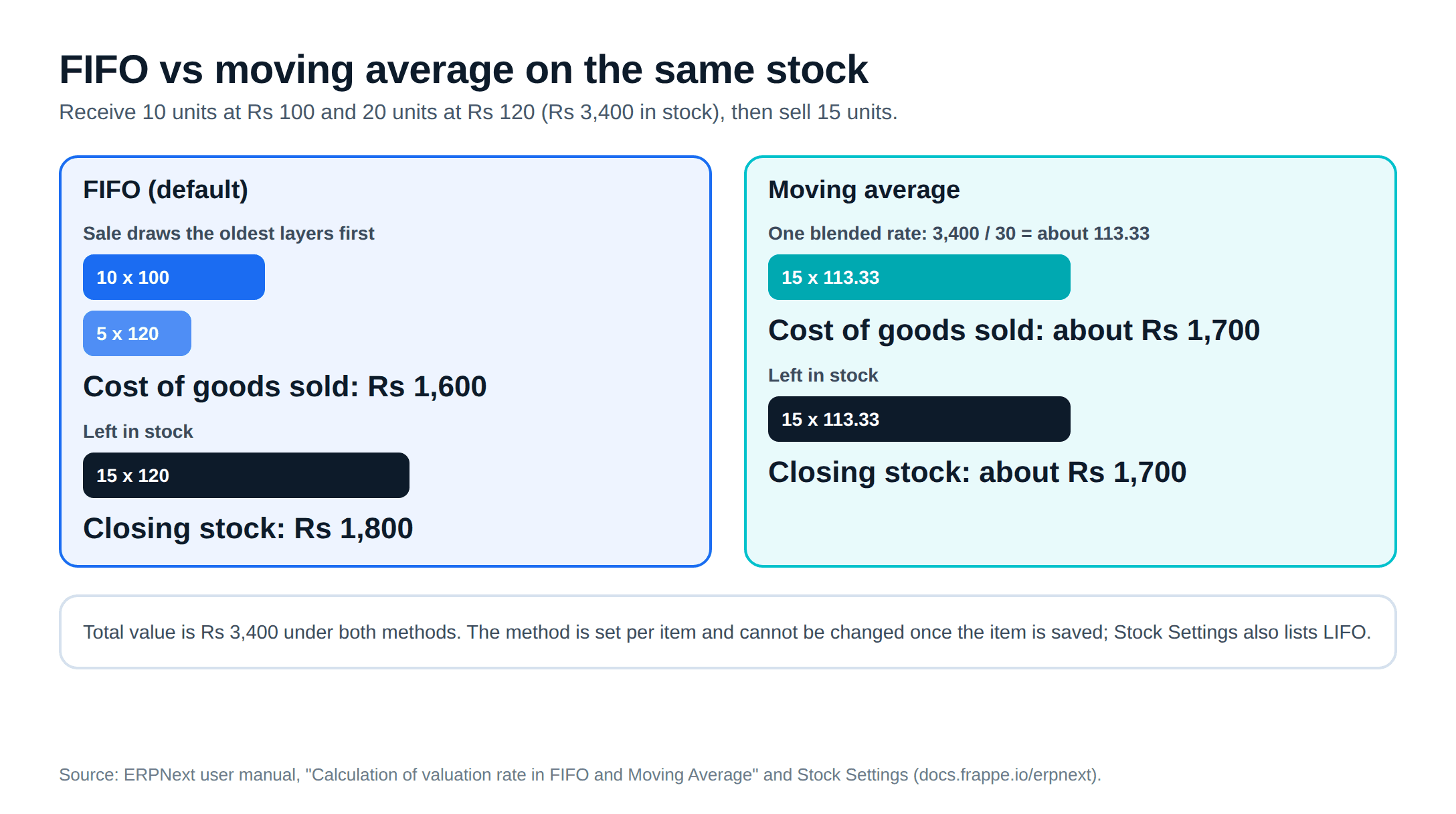
Stock Settings sets FIFO as the default valuation method and offers Moving Average and LIFO. The method is chosen per item and cannot be changed once the item is saved. Decide before you load opening stock, and check with your auditor which method your accounting framework permits.
Frappe's valuation example shows the difference. Receive 10 units at ₹100 and 20 at ₹120, then sell 15:
- FIFO: the sale takes 10 at ₹100 and 5 at ₹120, a cost of ₹1,600. The 15 left are worth ₹1,800.
- Moving average: the average after both receipts is about ₹113.33, so the sale costs about ₹1,700 and ₹1,700 stays in stock.
Total value is ₹3,400 either way; only the split between cost of goods sold and closing stock changes. FIFO's cost of goods sold follows the actual purchase layers; moving average blends them into one rate that changes with each receipt.
Reorder levels and projected quantity
On the item's Auto Re-order table you set, per warehouse, a "Check in (group)" warehouse, a "Request for" warehouse, a re-order level, a re-order quantity and a material request type (purchase, manufacture or transfer). With automatic material requests enabled in Stock Settings, ERPNext raises the Material Request when stock reaches the level and notifies the Purchase Manager and Stock Manager roles.
Planning works on projected quantity, which the planning system uses to monitor the reorder point:
- Actual: what is in the warehouse
- plus Ordered: on purchase orders, not yet received
- plus Planned: on work orders, not yet made
- plus Requested: on submitted material requests
- minus Reserved: on sales orders, not yet delivered
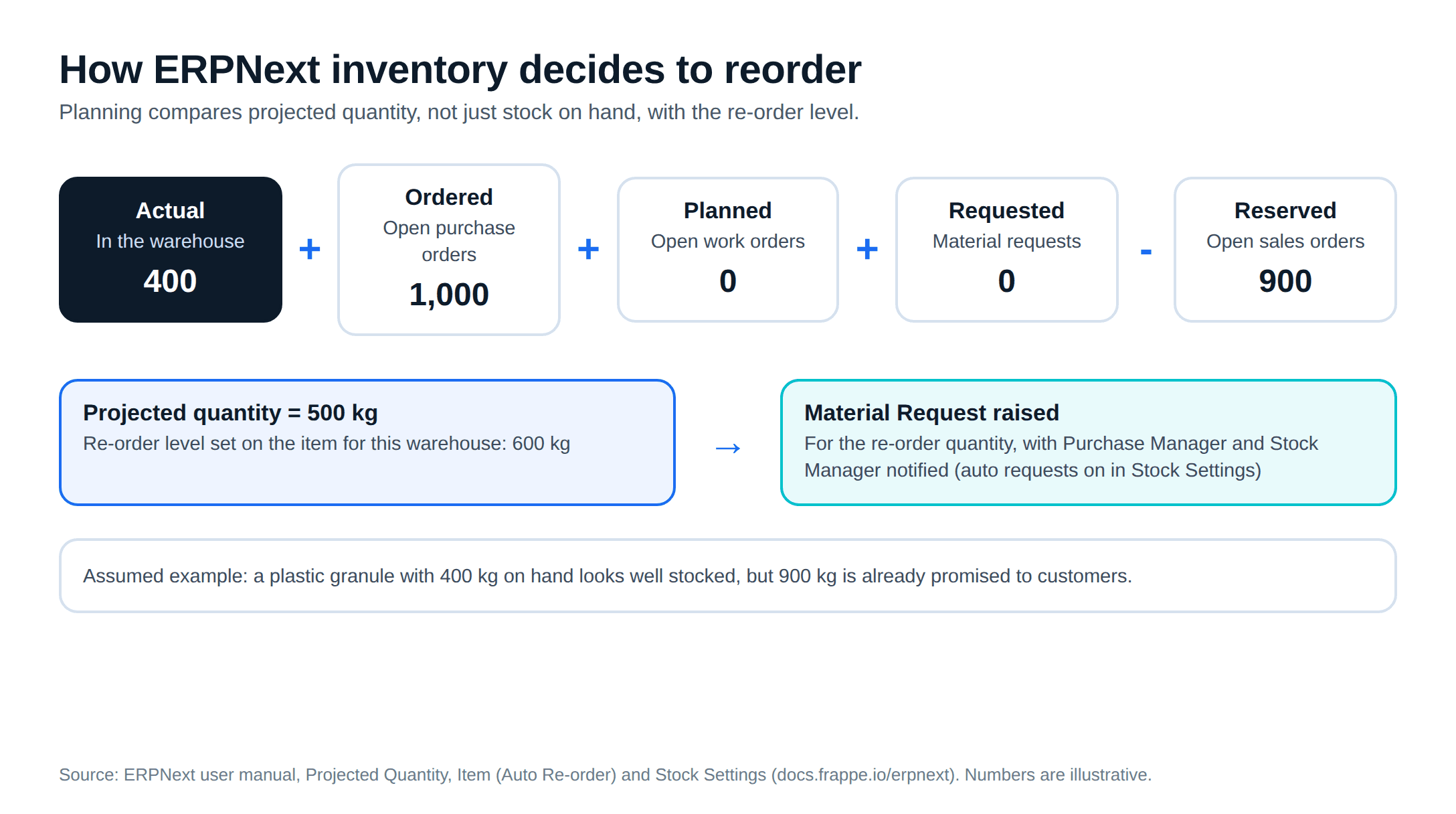
Worked example, with assumed numbers: a granule has 400 kg in stores, 1,000 kg on an open purchase order and 900 kg reserved for sales orders. Projected quantity is 500 kg. With a re-order level of 600 kg, ERPNext raises a request even though the stores look full, because most of what is there is already promised.
Putaway rules and landed cost
A Putaway Rule gives an item a capacity and priority in a warehouse. Tick "Apply Putaway Rule" on a Purchase Receipt or a Material Receipt or Transfer stock entry, and ERPNext fills the highest-priority location to capacity before moving to the next. At equal priority, the location with more free space goes first. In Frappe's example, 60 units against two 48-unit locations land as 48 and 12. If every location is full, ERPNext says so.
Freight, clearing and similar charges incurred until goods reach your stores can be added with a Landed Cost Voucher against a Purchase Receipt, or a Purchase Invoice with "Update Stock" ticked. The charges are added to the item's valuation rate. For imports, the India Compliance app fills the proportionate values when you create the voucher from the Bill of Entry. Our GST accounting guide covers the tax side of that document.
Quality inspection on receipt
Turn on inspection for an item and, per the Quality Inspection docs, a receipt or delivery can be submitted only after an inspection is done against it. A Quality Inspection Template holds the parameters and acceptance criteria: a numeric minimum and maximum, a text value that must match, a formula over readings, or a manual status for judgement calls. Failed readings mark the row Rejected on save.
The Purchase Receipt posts accepted quantity to the accepted warehouse and keeps rejected quantity in stock but outside the usable warehouse, so rejected units do not show as available. Inspections can also be raised against stock entries and job cards for in-process checks.
Barcode scanning
Barcodes sit in a table on the item, with EAN (13 digits) and UPC (12 digits) described in the docs. The barcode tracking page lists Delivery Note, Sales Invoice, Purchase Receipt and Stock Reconciliation as the transactions where scanning fetches the item. Each packaging level can have its own barcode, with the UOM picked when you scan. Other screens, phone-camera scanning and offline use on a floor with poor Wi-Fi are not covered on that page, so test them on your version before rollout, or plan a small custom screen.
Stock reconciliation and physical counts
A Stock Reconciliation has three jobs: loading opening stock, correcting book stock to a physical count, and correcting the valuation rate of stock on hand. The Items button fetches each item's balance and rate for a warehouse at a chosen date and time; you edit what differs and submit. Opening entries post the difference to Temporary Opening, and count adjustments to Stock Adjustment. Scan Mode lets a counter add quantities by scanning, and a CSV template handles large counts.
For batch and serial items from version 15, "Reconcile Selected" adjusts only the batches you name, while "Reconcile All" resets the warehouse to exactly what you counted. Two controls in Stock Settings protect closed periods: "Stock Frozen Upto" blocks postings before a date, and only the named role can edit frozen stock.
Rolling out ERPNext stock in a plant
- Draw the warehouse tree on paper first: sites, stores, WIP, finished goods, rejected, transit
- Decide batch, serial and valuation method per item group before the item import, since valuation cannot change later
- Check units of measure and conversion factors on every item that is bought in one unit and issued in another
- Load opening stock through Stock Reconciliation at a cut-off date and time, counted, not copied from the old register
- Set reorder levels only for items with steady consumption, and review them after three months of data
- Turn on inspection for the items QC already checks, with templates that match their current sheets
- Put barcode labels on the fastest-moving items first, and test the scanner on Purchase Receipt and Delivery Note
Metageeks is an independent ERPNext implementer. Our ERPNext implementation work loads and tests the item master against this checklist before any live transaction. If you would rather see the screens before scoping anything, book an ERPNext demo.
Frequently asked questions
Is ERPNext good for inventory management?+
For a plant or distributor that needs several warehouses, batch or serial tracking, quality checks at receipt and stock tied to accounts, yes. All of that is in the standard product with no licence fee. Two limits to know: barcode scanning is documented for a handful of transactions rather than every screen, and from version 15 batch and serial items can never go negative, so receipts must be posted before issues.
Which valuation methods does ERPNext support?+
FIFO is the default, and Stock Settings also offers Moving Average and LIFO. The method is set per item and cannot be changed once the item is saved, so decide it before you load opening stock. Check with your auditor which method your accounting framework permits.
How do reorder levels work in ERPNext?+
On the item you set, per warehouse or warehouse group, a re-order level, a re-order quantity and a material request type. With automatic material requests enabled in Stock Settings, ERPNext raises a Material Request when stock reaches that level and notifies the purchase and stock managers. Planning uses projected quantity, which counts open purchase orders, work orders, material requests and sales orders as well as stock on hand.
How do I correct stock after a physical count in ERPNext?+
Use a Stock Reconciliation. Fetch the system balance for a warehouse as of a date and time, edit the counted quantities, and submit. The difference posts to the Stock Adjustment account by default. For batch and serial items from version 15, you can reconcile only the selected batches or reset the warehouse to exactly what you counted.
Can ERPNext track stock in multiple warehouses and godowns?+
Yes. Warehouses form a tree, so a plant can model a site, then stores, rows and bins, with group warehouses that roll up stock. Each warehouse links to a stock account under perpetual inventory. Transfers can go through a transit warehouse so goods on a truck between sites are visible until the receiving end confirms them.
Related reading
- Tally inventory for manufacturing: where Tally stops for a plant.
- Production planning, BOM and MRP in ERPNext: from sales order to work order.
- GST accounting in ERPNext: tax templates, ITC and returns.
- ERPNext tutorial for manufacturing: item master to first work order.
Free ERPNext fit check
Will ERPNext fit your factory?
Answer a few quick questions. On a short call we tell you whether ERPNext fits how you make, stock and sell, and what the rollout looks like.
Check my fit →About the author

- Tags
- erpnext
- erp
- india
- inventory
- manufacturing
Subscribe to Our Newsletter
The AI Build Brief: practical playbooks on how to build, price and ship AI features, in one short email every other week.