
Picture a plant where the planner keeps the production schedule in one Excel sheet, the material requirement in another, and the real stock in the storekeeper's register. A rush order comes in on Monday. By Wednesday the shop floor has started the job, and the purchase team learns that a component is short. This guide covers how ERPNext plans production, explodes a bill of materials and tracks work on the floor, for the owner or planner of a 20-60 person Indian plant that is moving off spreadsheets.
TL;DR
- ERPNext's chain is Sales Order, Production Plan, Material Request, Work Order, Job Card and Stock Entry. Each step is a document you can see and approve.
- The Production Plan turns demand into a make list and a buy list, and it can net off projected stock. The buy list is only as good as your BOMs and your stock records.
- A BOM can be multi-level, carry operations, and record scrap and process loss. Wrong quantities in a BOM make every downstream figure wrong.
- ERPNext documents basic capacity planning (workstation hours, holidays, a capacity figure) but no schedule optimiser.
- A small plant should start with BOMs, a Work Order per job and honest stock, then add Production Plan and Job Cards.
From sales order to production plan
In ERPNext the flow runs in one direction. A customer's Sales Order is the demand. A Production Plan decides what to make and what to buy. A Material Request asks stores or purchase for the shortfall. A Work Order tells the floor to make an item. Job Cards track each operation on a workstation when the BOM has operations, and Stock Entries move the material.
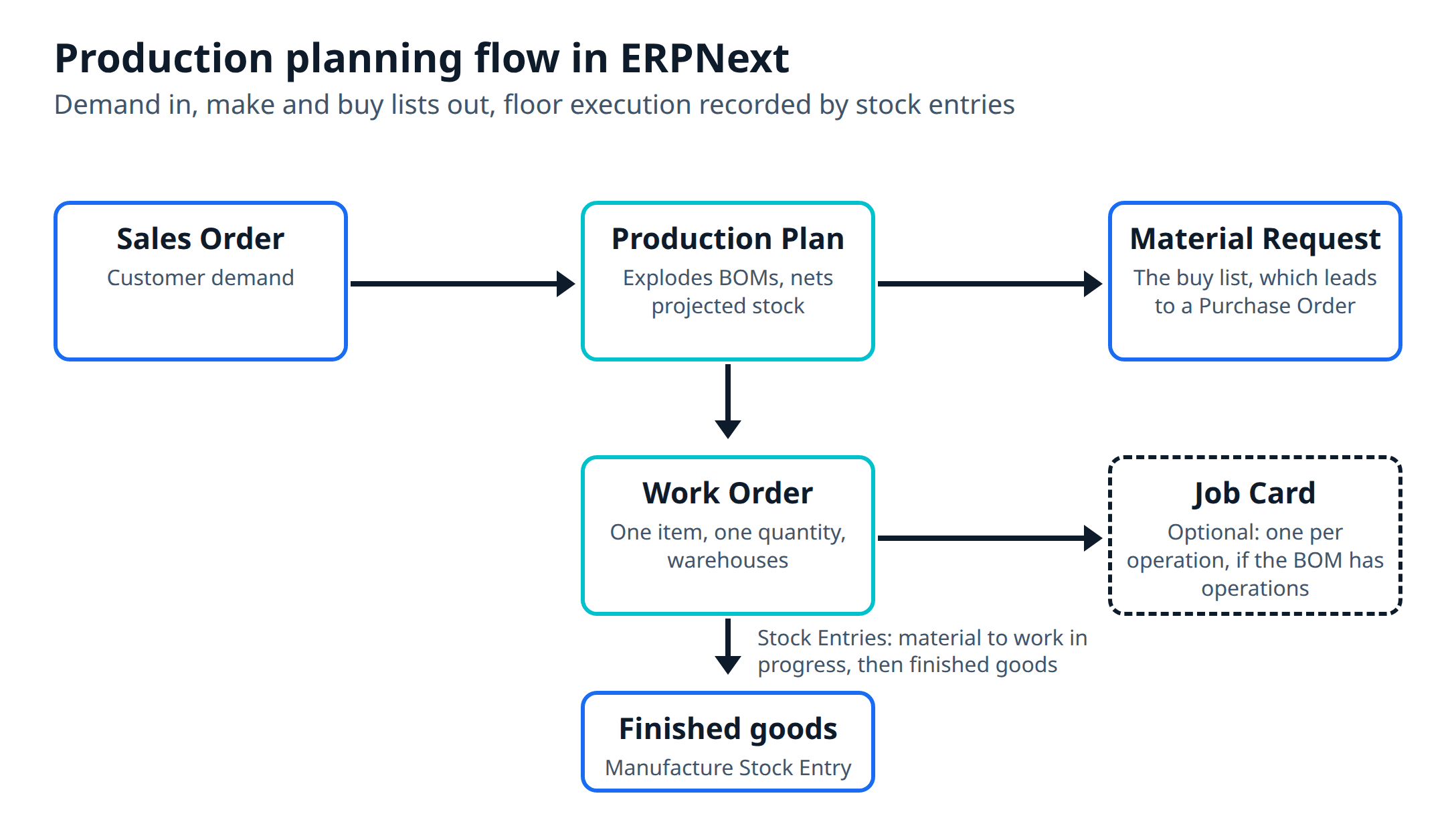
The Production Plan documentation describes two ways to start. You can pick Sales Order in the Get Items From field, apply filters and click Get Sales Orders, or you can start from Material Requests. Either way, you then click Get Items for Work Order, which fetches the items that already have a BOM. Two options matter for a small plant:
- Include Exploded Items adds the raw materials of sub-assemblies.
- Consolidate Items merges items that share a BOM, so two orders for the same product become one line.
The plan puts all open orders on one sheet before any machine starts, so the planner can, for example, run two small orders for the same product as one batch.
For sub-assemblies, the page says you can click Get Sub Assembly Items to fetch them from the finished-goods BOMs. A Manufacturing Type field lets you mark each as In House (a Work Order), Sub-contract (a Purchase Order) or Material Request. That fits work that goes to a job worker, such as machining, plating or printing. Our guide to ERP for plastics manufacturers covers the GST side of job work.
After you submit the plan, you can create Work Orders and Material Requests from it, and set its status to Closed to stop further orders being raised against it.
BOMs: multi-level, with scrap and operations
Everything else rests on the Bill of Materials. It lists the raw materials, quantities and, optionally, operations to make one item.
The documentation says ERPNext supports multi-level BOMs: each sub-assembly can have its own BOM, forming a tree of items. The Materials Required (Exploded) table on the finished item's BOM then includes the sub-assembly components. A Do Not Explode checkbox stops specific items exploding, which suits a sub-assembly you keep in stock instead of making per order.
A few more BOM features a small plant will use:
- With Operations: when ticked, each operation carries a workstation, an hourly rate and a time, and the operating cost is worked out from them.
- Scrap and process loss: the Scrap section records waste. If the scrap item is the same as the item being made, it becomes a Process Loss item and its quantity is subtracted from the output.
- Allow Same Item Multiple Times, for a part that appears twice with different specifications, such as two pipes of 0.5 metre each instead of one of 1 metre.
- Costing: raw material rates can come from the item's valuation rate, the last purchase rate or a Price List, and an Update Cost button refreshes them. Automatic updates can be set in Manufacturing Settings.
The food post shows recipes as BOMs with process loss, and the same logic applies to any product.
ERPNext cannot tell you the right quantities. A BOM that says 1.00 kg of steel per bracket, when the real figure with offcuts is 1.12 kg, makes the material requirement about 11 percent short every time. Take quantities from a real run. The documentation says a submitted BOM cannot be edited: you cancel it, or duplicate it and submit the copy. That is one more reason to keep one person responsible for changing a BOM.
MRP: what to buy and when
Material requirements planning, in its textbook form, uses three inputs: a production schedule, the bill of materials and an inventory status file. It returns what to order and when (Autodesk's overview explains this). In ERPNext those inputs are your Sales Orders or Material Requests, your BOMs and the stock in each warehouse.
The Production Plan does the netting. Its documentation describes two checkboxes, Skip Available Sub-Assembly Items and Skip Available Raw Materials, which use the Projected Qty in the bin to work out what is required. With Skip Available Raw Materials on, the page gives the formula as Required Qty = BOM Required Qty - Projected Qty.
To get the buy list, you click Get Items for Purchase Only, which fills the Material Request Plan table with the raw materials. You can set the warehouse the request is for, and choose whether to include non-stock items. If part of the stock sits in another warehouse, Get Items for Purchase / Transfer suggests moving it (from the child warehouses if you pick a parent) and buys only the rest. Then you create Material Requests from the plan. The Material Request documentation lists the purposes: Purchase, Material Transfer, Material Issue, Manufacture, Subcontracting and Customer Provided. A Purchase request can lead to a Purchase Order, a Request for Quotation or a Supplier Quotation, and it carries a Required By date, per line if needed.
The Material Request page adds that ERPNext can raise Material Requests automatically when an item's Projected Quantity in a warehouse falls below its re-order level, marked with an Auto Created (Reorder) checkbox. For fast-moving consumables you may prefer that to running the plan.
Two limits to know about before you promise your purchase team a fully automatic buy list:
- The plan is only as accurate as the stock. If the physical count and the system disagree, so will the requirement. This is why cycle counts matter before go-live.
- The pages we reviewed describe no supplier lead times or safety stock inside the Production Plan. Item re-order levels cover part of that need.
Work orders and job cards on the floor
A Work Order is created from the Production Plan, or by hand under Manufacturing. You pick the item, ERPNext fetches the default BOM, and you enter the quantity and planned start date. Four warehouses are involved: source (raw materials), work-in-progress, target (finished goods) and scrap. The source warehouse stock is reserved on submission.
The documented stock movement is two steps. After you submit the Work Order, you transfer raw materials, which creates a Stock Entry to the work-in-progress warehouse. When the job finishes, a Manufacture Stock Entry consumes those materials and books the finished goods into the target warehouse. A Backflush option can create that Manufacture entry in one go, and Manufacturing Settings lets you backflush based on either the material transferred or the BOM.
If operators take material without a Stock Entry, the system thinks it is still in the store.
The Job Card documentation says Job Cards are created as drafts, one per operation, when the Work Order is submitted. It records the workstation, the operation, the employee and a Completed Quantity. Time is entered with Start Job and Complete Job buttons or by filling From Time and To Time in a Time Logs table. If several employees work on one operation, you can add more job cards. You can also set the BOM to transfer material against Job Cards instead of the Work Order.
Job Cards only exist if the BOM has operations. A plant that cares about the quantity and cost of a batch, not about time per operation, can run Work Orders without them and add them later.
Capacity and routing
A Workstation has a Working Hours table with start and end times, which can follow shifts, and a Holiday List. Production Capacity is described as the total number of jobs that can run at the same time on that workstation. The page says that when Work Orders are scheduled, the system checks workstation availability against the working hours. The Work Order page adds that on submission it schedules operations based on workstation availability and planned start dates, creating Time Logs.
Manufacturing Settings has the switches: Disable Capacity Planning, Allow Overtime, Allow Production on Holidays, Capacity Planning For (Days) and Time Between Operations (Mins). Disable Capacity Planning is described as helping you decide whether to accept new orders, based on resources and existing work orders. If you enable Allow Overtime, Work Orders and Job Cards can be created outside workstation working hours.
Routing is separate. It is a template of BOM operations, with default workstation, hourly rate, operation time and batch size, that you select in a BOM so similar operations are not typed again. Its Sequence ID makes operators complete operations in order through the Job Card.
So the building blocks for finite scheduling are there: working hours, holidays, capacity per workstation and operation times. The documentation we reviewed describes no optimiser that sequences jobs to minimise changeovers or meet due dates across many machines, so that judgment stays with your planner.
Where a small plant should start
You do not need every document on day one. A sensible order for a 20-60 person plant:
- Item master and stock opening balances. Planning built on wrong stock gives wrong answers. Our ERPNext modules overview lists what ships with Manufacturing.
- BOMs for the top products, with quantities taken from real runs and a stated process loss.
- Work Orders with material transfer and manufacture entries, so stock follows the floor.
- Production Plan once the planner trusts the BOMs and stock, starting with one product family.
- Job Cards and workstation hours, once you want time and cost per operation.
Before you commit, ask for a trial run on your own data and check these once:
- Explode a two-level BOM from a Sales Order and compare the raw material list with the one your planner would write by hand.
- Run the Production Plan with Skip Available Raw Materials on, and compare the shortfall with a physical count.
- Submit a Work Order with operations and check whether the schedule it produces for your shifts and holidays is one your planner would accept on a busy week.
- Mark one sub-assembly as subcontracted and follow it through to a Purchase Order.
- Take one long-lead part and check how re-order levels and your supplier lead time are handled.
Put these tests in the written scope before you sign. Our cost guide explains why that document should come before any quote.
Metageeks is an independent ERPNext implementer. If you run a small plant and want to know what ERPNext will plan for you and what the planner will still do by hand, tell us what you make and how orders reach the floor today, and we will tell you.
Frequently asked questions
Does ERPNext do MRP?+
ERPNext's Production Plan covers the core of material requirements planning: it takes Sales Orders or Material Requests, explodes the Bills of Materials, and builds a list of raw materials to buy. It can subtract projected stock in the bin before it does. It is a planning document you run on demand, not a scheduler that re-plans the whole plant overnight, so check it against your own order mix.
What is the difference between a Production Plan and a Work Order in ERPNext?+
A Production Plan is the planning layer. It collects demand from Sales Orders, works out what to make and what to buy, and can create Work Orders and Material Requests from that. A Work Order is the instruction to make one item in one quantity: it holds the BOM, the warehouses and the operations, and it is what the floor executes.
Can ERPNext schedule machine capacity?+
A basic version. Workstations have working hours, holidays and a capacity figure, and submitting a Work Order schedules its operations against them. The documentation we reviewed describes no optimiser for sequencing jobs.
Do I need Routing as well as a BOM?+
Only if your operations repeat across products. A BOM can carry its own operations. A Routing is a template of operations that several BOMs can reuse, and its Sequence ID makes operators complete steps in order through the Job Card. A plant with one product line can skip it at first.
Free PDF
The 2026 AI Development Rate Sheet
Build, agent, RAG and consulting rates by tier, in one PDF, so you can check a quote before you sign it.

Written by
Pankaj Kumar
Founder · Metageeks Technologies
Metageeks builds software and AI products for growing businesses. Every build is scoped in writing before it starts, and you see progress every week. We write about what holds up once it reaches production.
Connect on LinkedInThe AI Build Brief
Ship AI that holds up in production.
Practical playbooks on how to build, price and ship AI features, in one short email every other week.